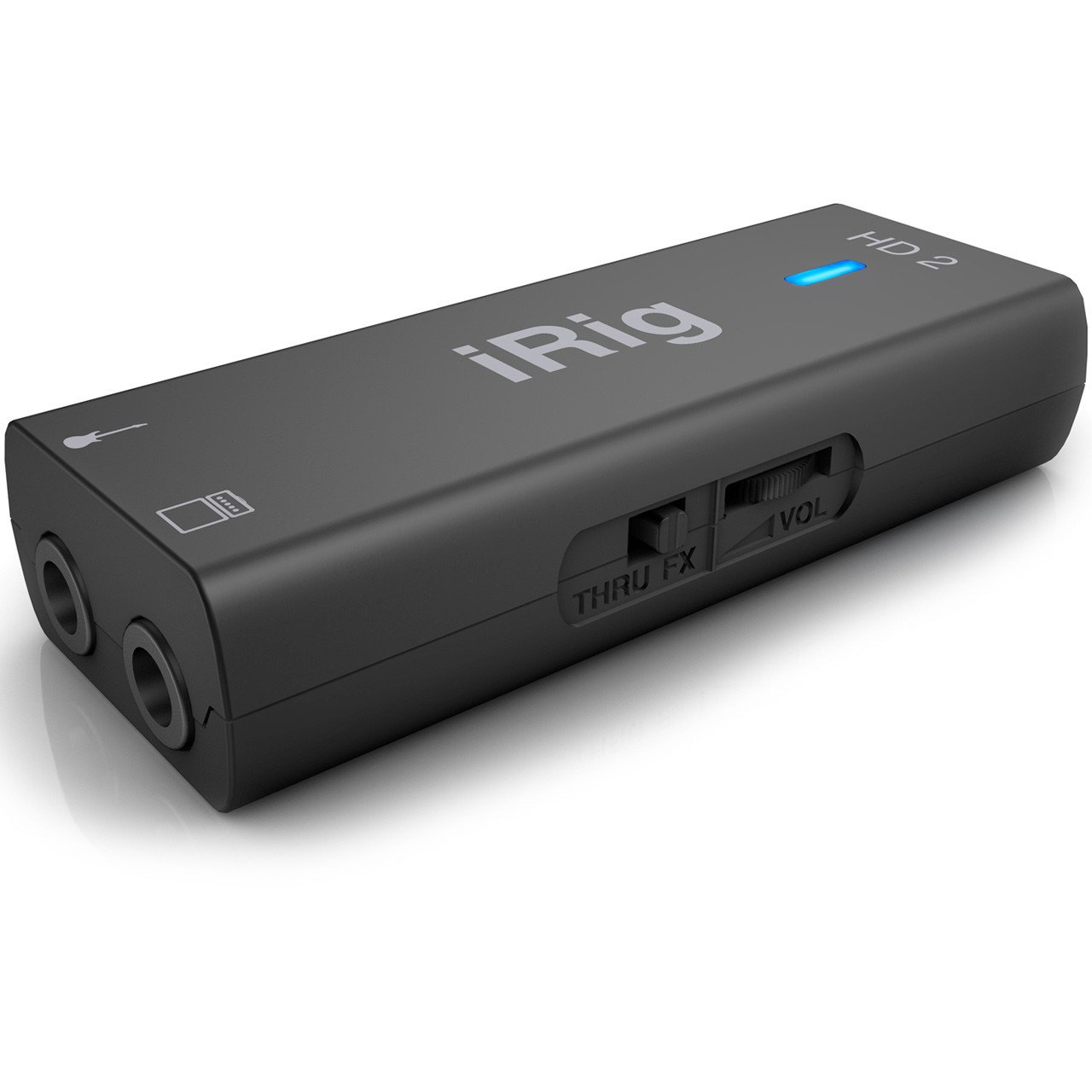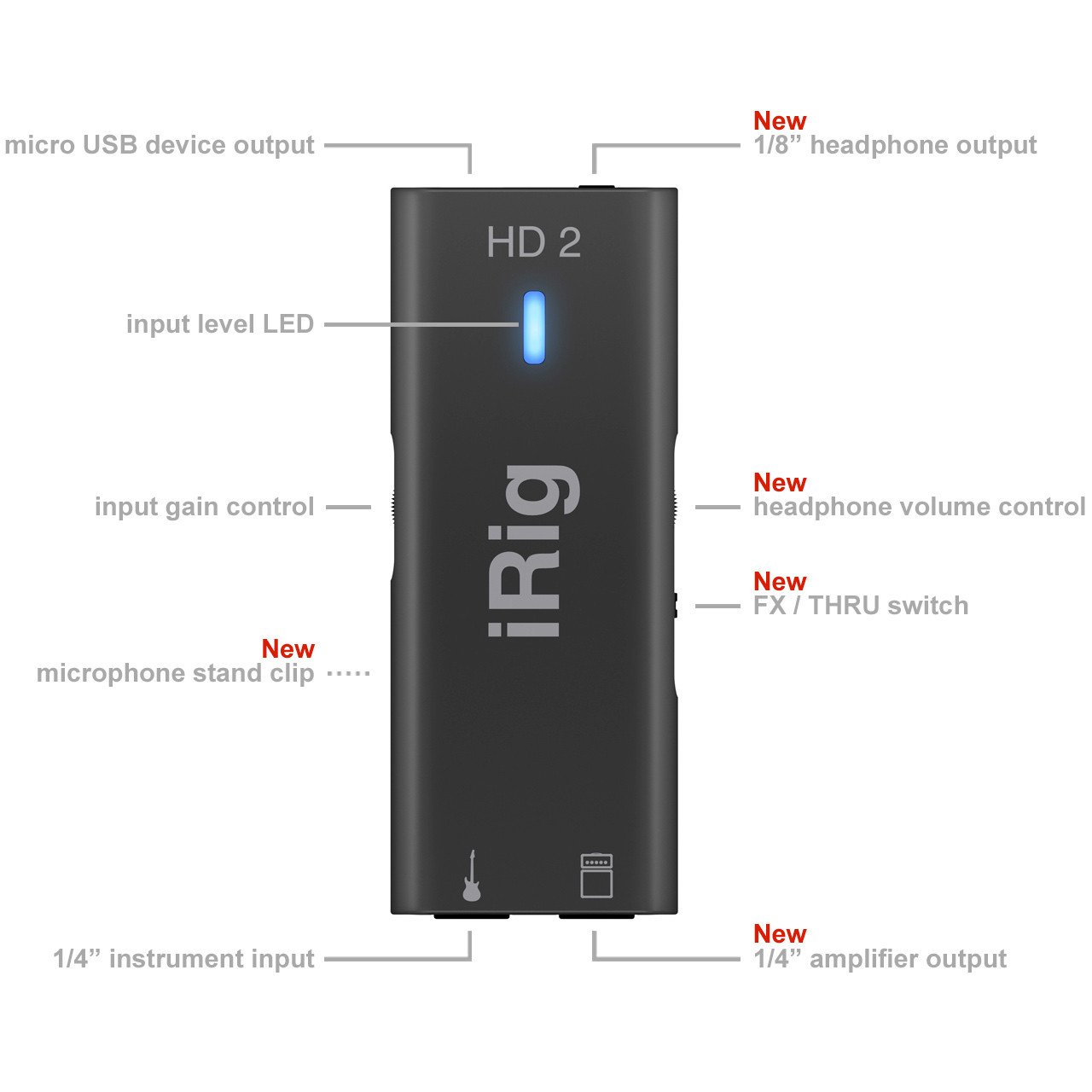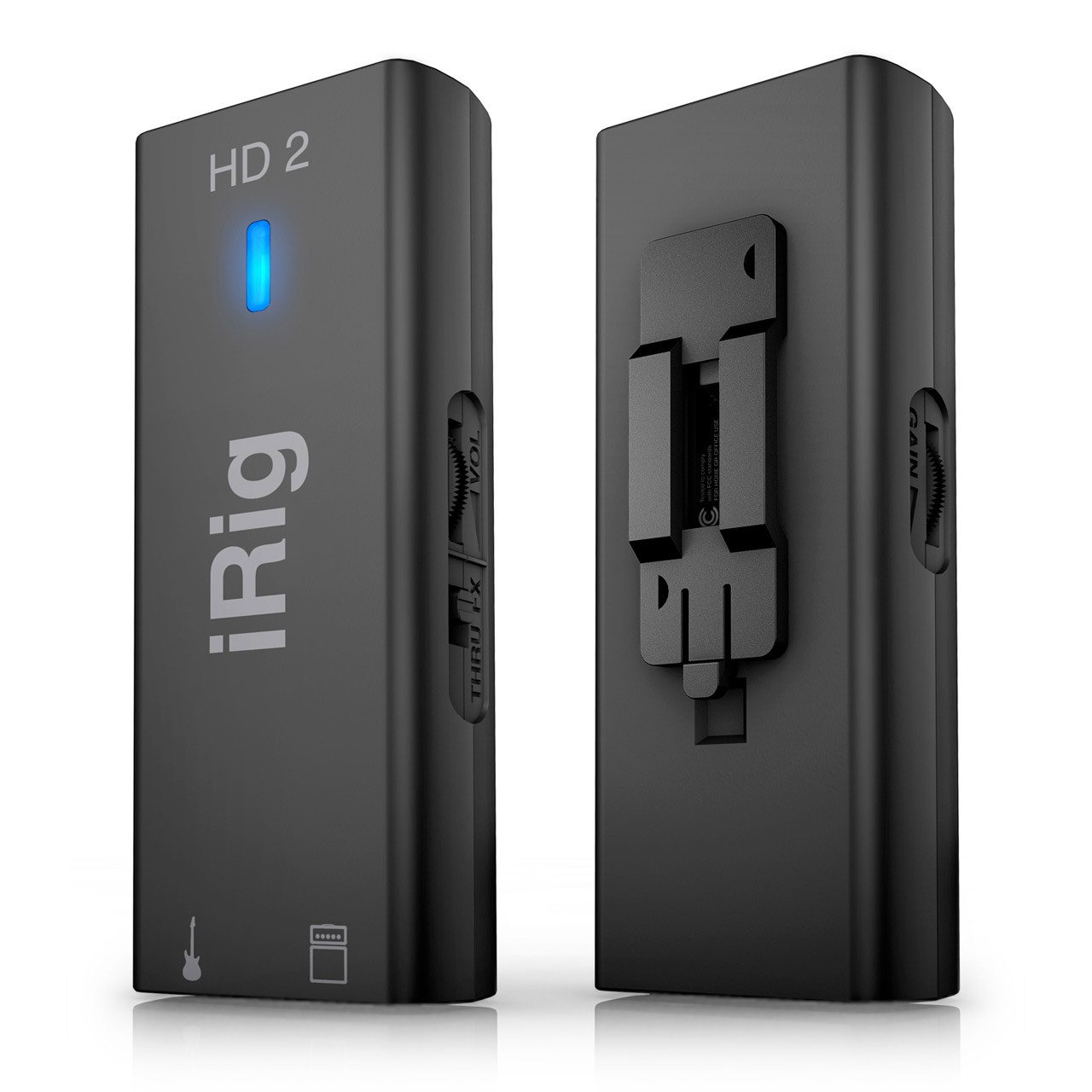
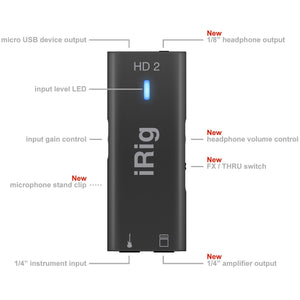
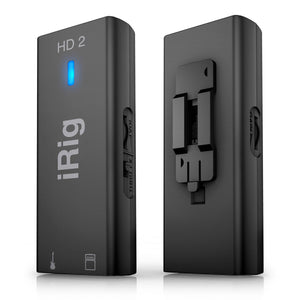
iRig HD 2 at a glance High definition digital guitar interface for iPhone, iPad, Mac and PC High-quality instrument-level 1/4" Hi-Z input jack Detachable cables for Lightning and USB included Preamp input gain control Headphone output with preamp and level control 1/4" Amp Out jack with switchable output “FX” and “Thru” High-quality low-noise, high-definition guitar preamp High-quality 24-bit A/D conversion 96kHz sampling rate – the highest in its class Powered by the iOS device or USB Can be used with line level signals from synthesizers, keyboards and mixers Ultra-compact and lightweight – fits in your pocket, laptop bag or gig bag Comes with microphone stand mounting clip and Velcro strip Comes with AmpliTube 4 for Mac/PC Unlocks full version features and gear of AmpliTube for iOS (Free download from App Store)
IK Multimedia iRig HD 2 Specifications:
Package includes: iRig HD 2 interface Lightning to Micro-USB cable (60cm/23.62") USB to Micro-USB cable (60cm/23.62") Detachable microphone stand mounting clip Velcro strip Dimensions: Size: 39mm/1.53" x 99mm/3.9" x 21mm/0.83" Weight: 51g/1.8oz
IK Multimedia iRig HD 2 System Requirements:
Compatible with iPhone SE, iPhone 6s Plus, iPhone 6s, iPhone 6 Plus, iPhone 6, iPhone 5s, iPhone 5c, iPhone 5, iPod touch 6th generation, iPod touch 5th generation, iPad Pro (9.7-inch), iPad Pro (12.9-inch), iPad mini 4, iPad Air 2, iPad mini 3, iPad Air, iPad mini 2, iPad 4th generation, iPad mini. iOS 6.0 or later is required.
Also compatible with iPhone 7 Plus and iPhone 7.
Mac®: Mac OS X 10.6 or later. One free USB port. Windows®: Support using the ASIO4ALL driver on Windows XP/Vista/7/8/10. See our FAQ here for further details.
** Please note, system requirements may change. For the most recent system requirements please visit the manufacturer's official product listing **
Plug and play ability with easy to use software, great product.
R
Rere W.
works perfectly
the item are very good, friendly staff and good service
Recently viewed products
PayPal Pay Later Messaging
Step 1: Choose message placement
Click the button below and then hover over your page to select a placement.
Step 2: Paste and save
You have copied the placement for the Product Page.
Go back to the App Embeds section, and in the Paypal Advanced Settings, paste the copied value into the
Product Page field and click the 'Save' button in the top right corner.