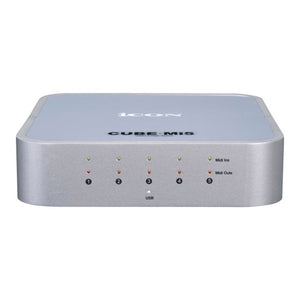
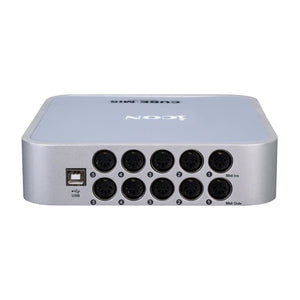
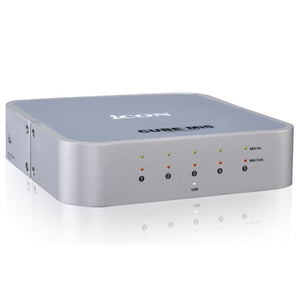
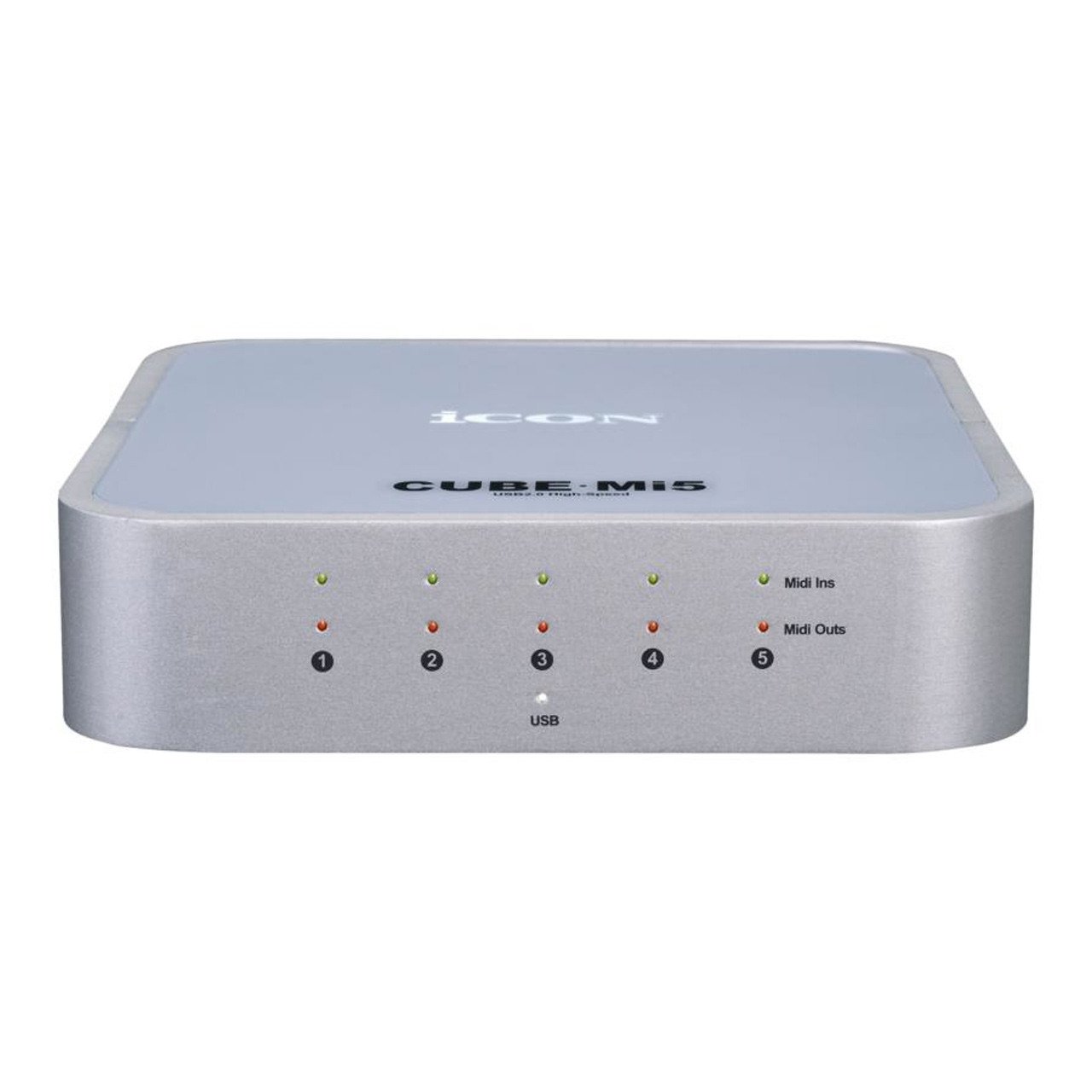
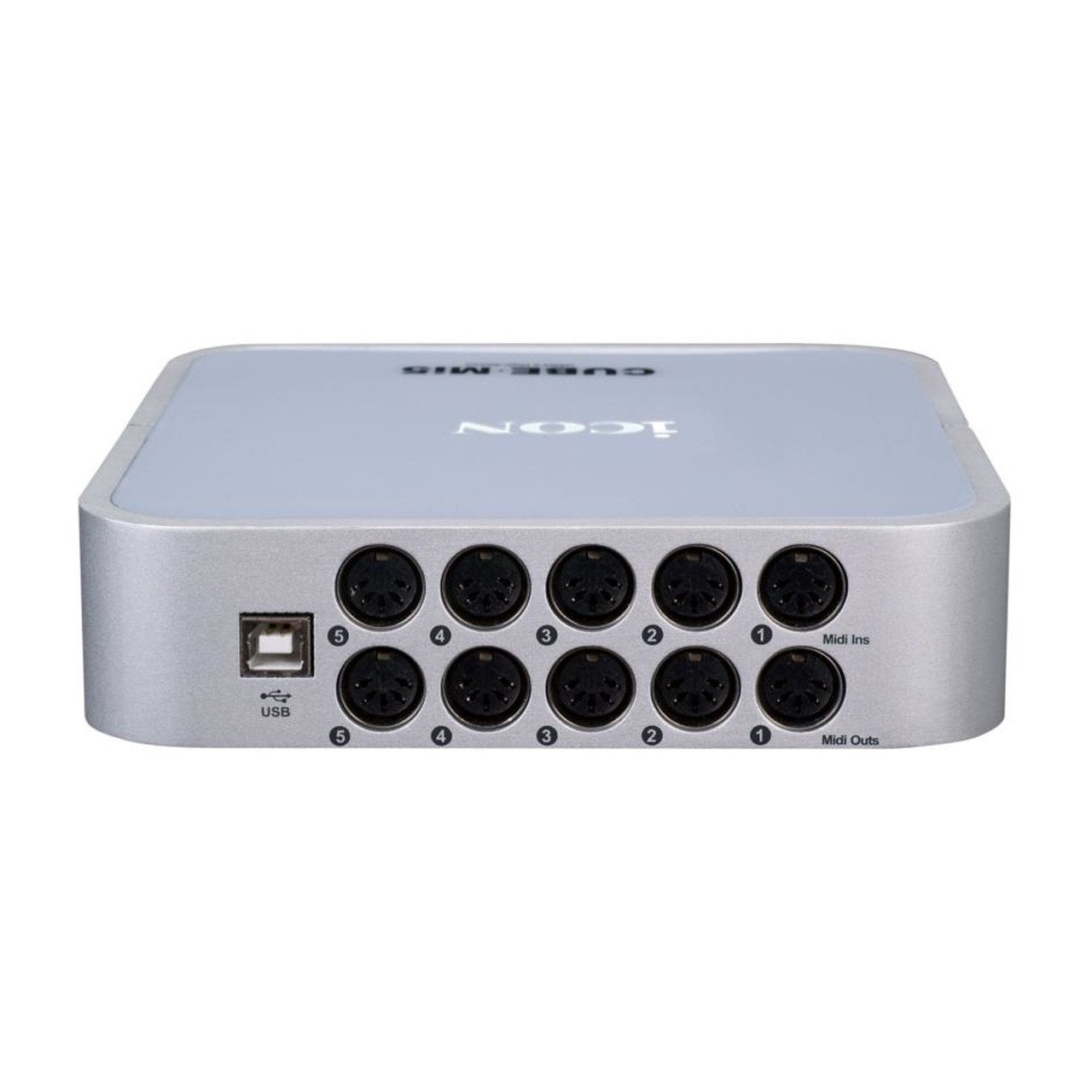
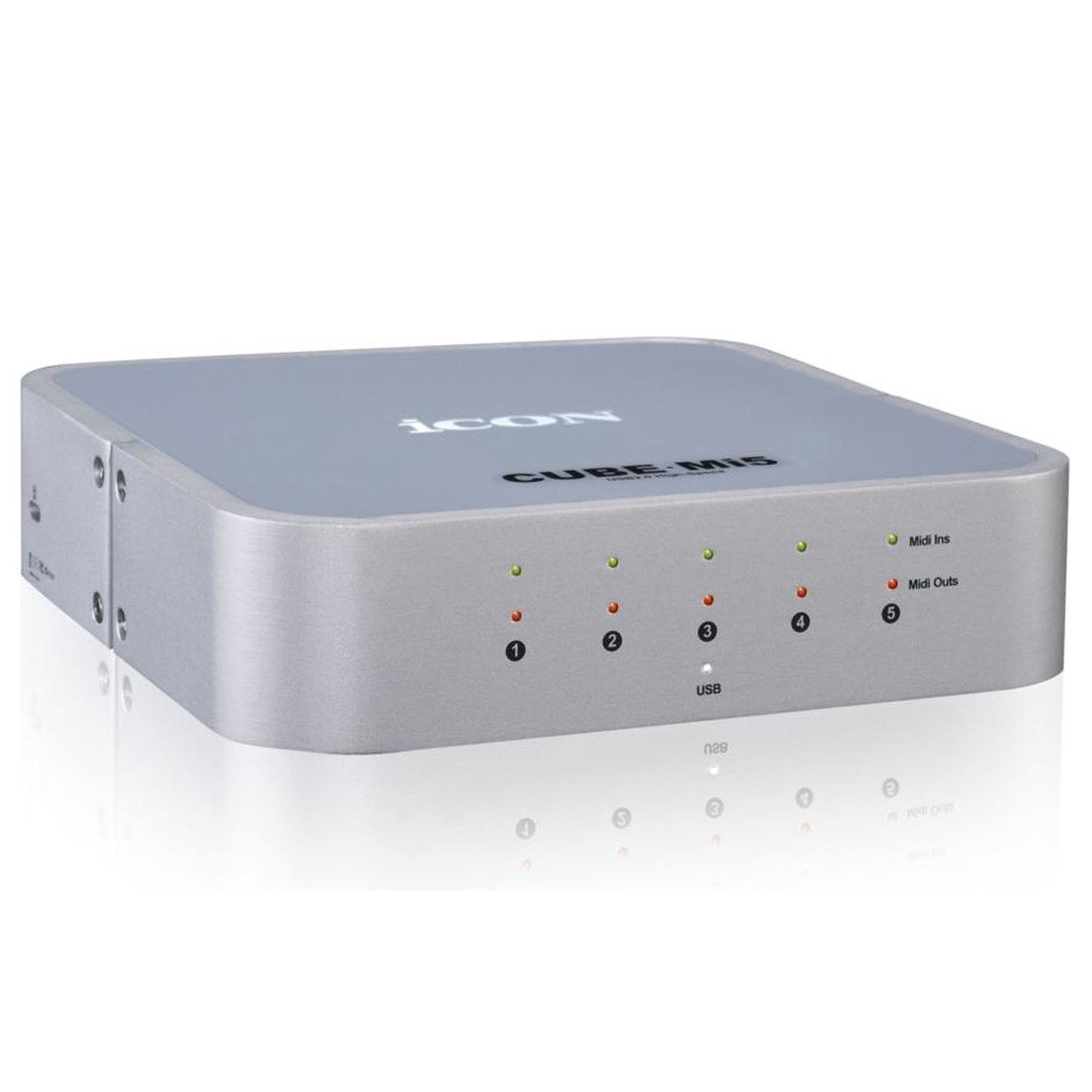
5-in / 5-out MIDI interface (80×80 MIDI channels) Supports multiple platforms with MultiPlatTM driver (Windows only) MultiPlatTM driver available for 32-bit and 64-bit Windows platforms USB 2.0 for high-speed connection Plug & play for Mac and Window platforms Class-compliant with Windows XP, Vista (32-bit), Windows 7 (32-bit/64-bit) and Mac OS X No IRQ, I/O address or DMA channel setup Perfect MIDI timing MIDI-in and MIDI-out activity indicators for each port USB bus powered, no external power supply required
iCON Cube Mi5 Specifications:
Connectors USB: USB 2.0 connector (standard type) MIDI Inputs: 5 x Din 5 female MIDI connectors MIDI Outputs: 5 x Din 5 female MIDI connectors Signal Indicator USB signal: 1 x White color LEDs MIDI Inputs: 5 x Green color LEDs MIDI Outputs: 5 x Red color LEDs General Power supply: USB bus-powered Current consumption: 100mA or less Weight: 0.94kg Dimensions: 165 x 165 x 50 mm
iCON Cube Mi5 System Requirements:
Supported OS: Mac OS 10.8(Intel CPU/32-bit) Mac OS 10.8(Intel CPU/64-bit) Mac OS X 10.9 Mac OS X 10.10 Mac OS X 10.11 Windows XP (32-bit) Windows XP (64-bit) Vista (32-bit) Yes Vista (64-bit) Yes Windows 7 (32-bit) Windows 7 (64-bit) Windows 8 (32-bit) Windows 8 (64-bit) Windows 8.1 (32-bit) Windows 8.1 (64-bit) Windows 10 (32-bit) Windows 10 (64-bit)
Does NOT support iOS 7-9
** Please note, system requirements may change. For the most recent system requirements please visit the manufacturer's official product listing **
This product does exactly what I expected, and what I was after. Easy to use, set up, and I have had no problems with it at all.
A
Ashraf M.
Ordered Online from www.soundseasy.com.au
Unfortunately, out of stock - can not comment on that model - but got MidiPort 2 from the same manufacturer - 2 midi in / 2 midi out - not bad for the price.
Recently viewed products
PayPal Pay Later Messaging
Step 1: Choose message placement
Click the button below and then hover over your page to select a placement.
Step 2: Paste and save
You have copied the placement for the Product Page.
Go back to the App Embeds section, and in the Paypal Advanced Settings, paste the copied value into the
Product Page field and click the 'Save' button in the top right corner.